
NFC Emulate
Your NFC Card in Your Phone
NFC Emulate lets you scan, store, and emulate NFC cards directly from your Android phone. Replace your access cards, key fobs and tags with a single app.
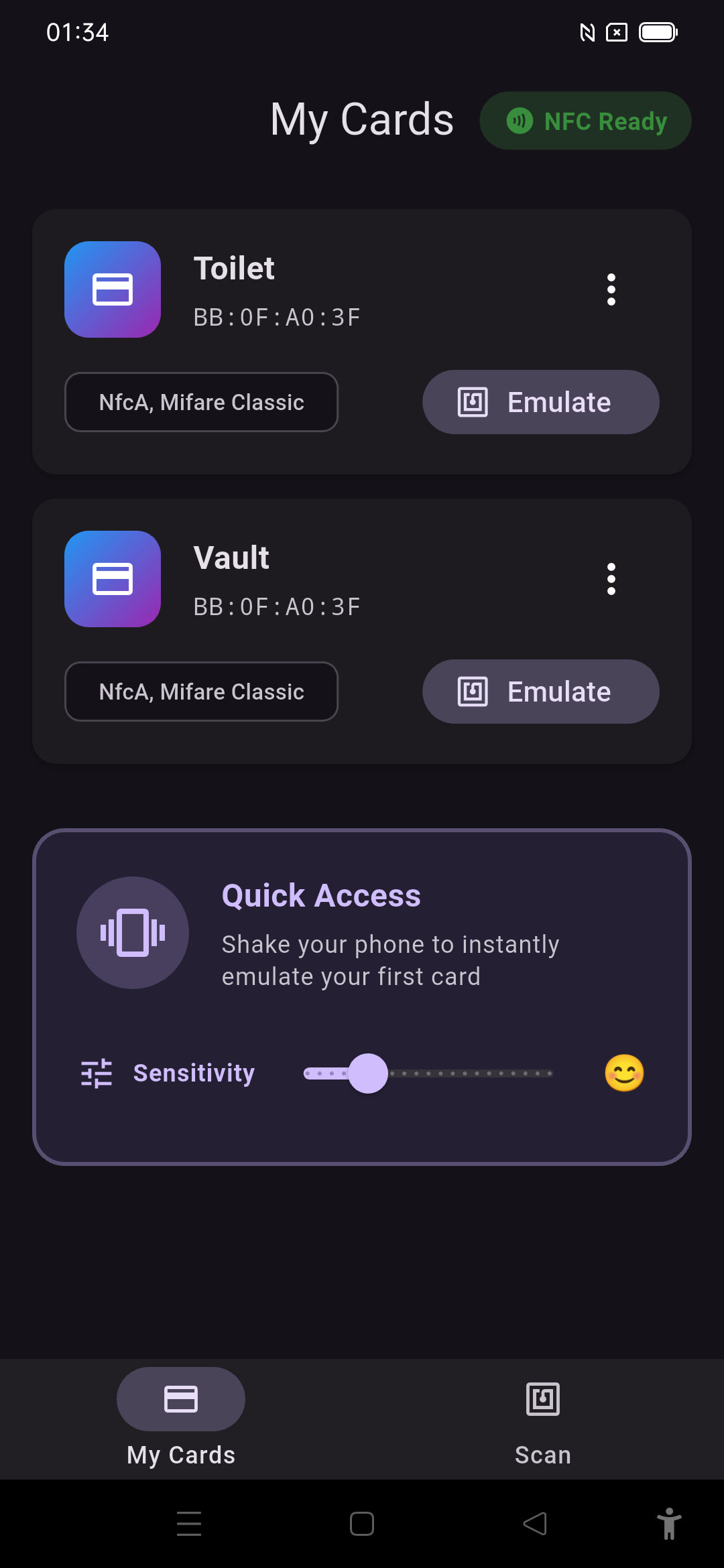
Scan and Store
Scan any NFC card and save it with a custom name and icon. Keep all your access cards organised in one place.
One-Tap Emulate
Emulate any stored card with a single tap. Your phone becomes the card — just hold it to the reader.
Shake for Quick Access
Shake your phone to instantly emulate your first card. Adjustable sensitivity so it triggers exactly when you want it to.
Privacy and Data
NFC Emulate stores card data locally on your device only. No data is sent to any server. Read our Privacy Policy and Terms of Service.
Scan Any NFC Card
Hold any NFC card — building pass, gym membership, parking tag, office badge — to your phone and NFC Emulate reads and saves the card data in under a second.
Emulate Instantly
Select any saved card and hold your phone to any NFC reader. NFC Emulate uses Android Host Card Emulation (HCE) to present the card exactly as the original.
Secure Local Storage
All card data is stored in an encrypted local database on your device only. Nothing is uploaded to any server. Your cards are yours alone.
Which Cards Does NFC Emulate Support?
NFC Emulate works with a wide range of NFC card types used in access control, transport, and membership systems:
- MIFARE Classic — The most common access card standard used in offices, gyms, apartment buildings and car parks worldwide
- MIFARE Ultralight — Used in transport tickets, event passes and disposable access cards
- NTAG203 / NTAG213 / NTAG215 / NTAG216 — NFC Forum Type 2 tags used in smart posters and product authentication
- ISO 14443-A / ISO 14443-B — The underlying standards for most contactless smart cards
- FeliCa — Used in Japanese transit systems and some Asian access control systems
Note: High-security cards such as bank cards and government IDs use cryptographic protection that cannot be emulated. NFC Emulate will inform you if a card cannot be read.
Getting Started with NFC Emulate
Getting started takes less than two minutes:
- Install NFC Emulate from the Google Play Store and open the app
- Grant NFC permission when prompted on first launch
- Tap the + button to scan a new card
- Hold your NFC card flat against the back of your phone near the NFC antenna
- NFC Emulate reads the card and shows its UID, type, and readable data
- Give the card a name and assign a custom icon or colour
- To emulate, select the card in your list and hold your phone to the reader
Pro tip: Enable shake-to-emulate in Settings to instantly activate your default card by shaking your phone — no need to open the app.